Effortlessly connect Zylen with WordPress to streamline your content creation and publishing process.
Why Integrate Zylen with WordPress?
Integrating Zylen with WordPress offers several benefits:
Seamless Workflow: Create and edit content in Zylen, then publish it directly to WordPress.
Time-Saving Automation: Reduce manual uploads and formatting tasks.
Consistency in Publishing: Maintain a consistent style and formatting across all posts.
Step-by-Step Integration Guide
Before you begin, ensure that your Zylen plan supports WordPress integration.
Step 1: Prepare Your WordPress Account
i. Navigate to WordPress Admin Dashboard:
Log in to your WordPress admin dashboard using your credentials.
ii. Install the Plugin:
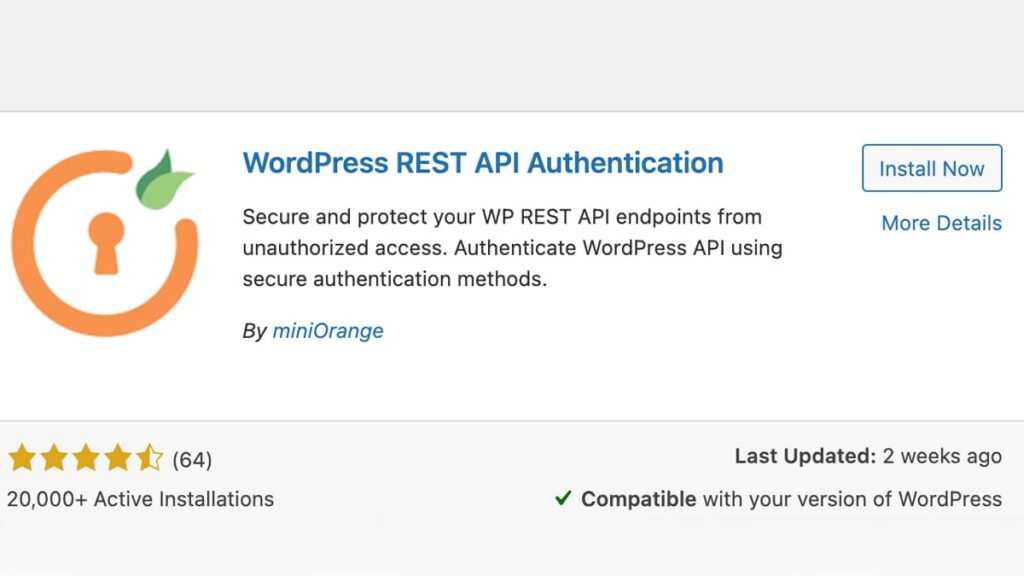
In the WordPress dashboard, navigate to ‘Plugins’ > ‘Add New’.
Search for ‘WordPress REST API Authentication’ in the plugin search bar.
Click on ‘Install Now’ and then ‘Activate’ to activate the plugin.
iii. Tune Up Settings
After installation, make sure that JWT Authentication is activated in the plugin settings.
Two-factor authentication must be disabled on your WordPress site.
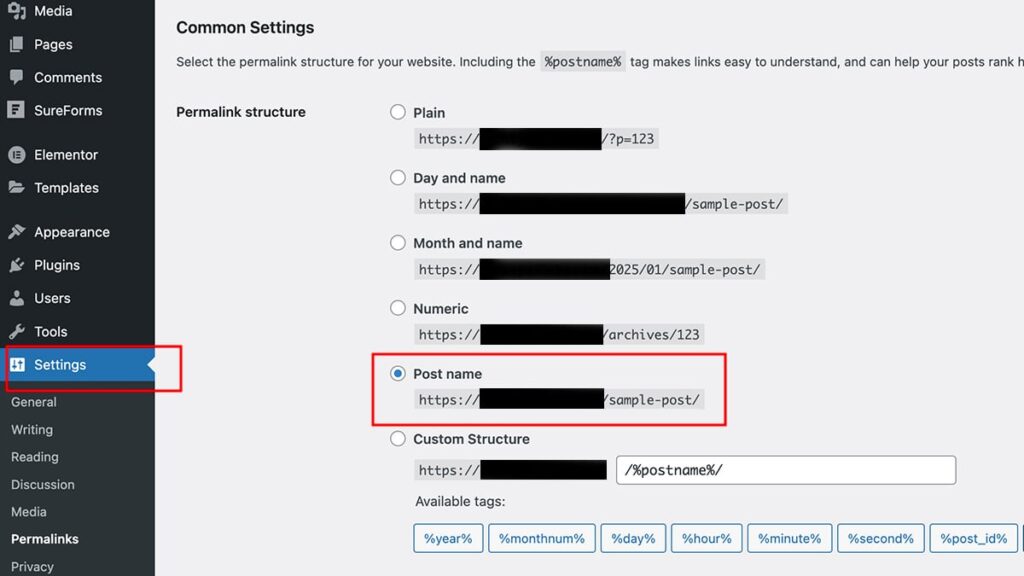
Change Permalink structure. From the WordPress panel, go to Settings -> Permalinks and select the ‘postname’ option
Step 2: Configure Plugin
i. Configure WordPress REST API Authentication
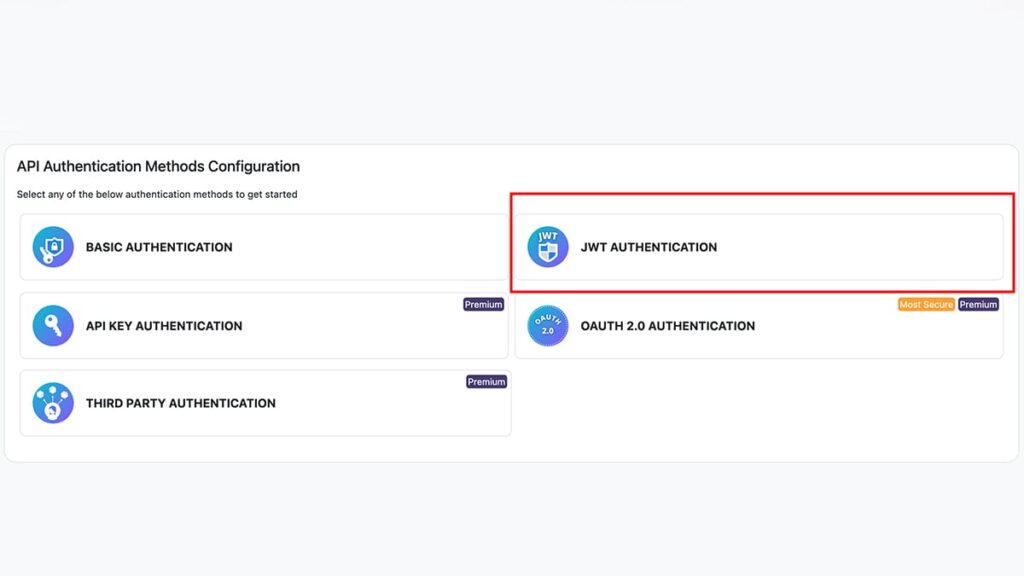
From your WordPress dashboard access the plugin you installed in step #1. Make sure the plugin is activated.
on API Authentication Methods Configuration screen select JWT Authentication
ii. Setup JWT Authentication Method
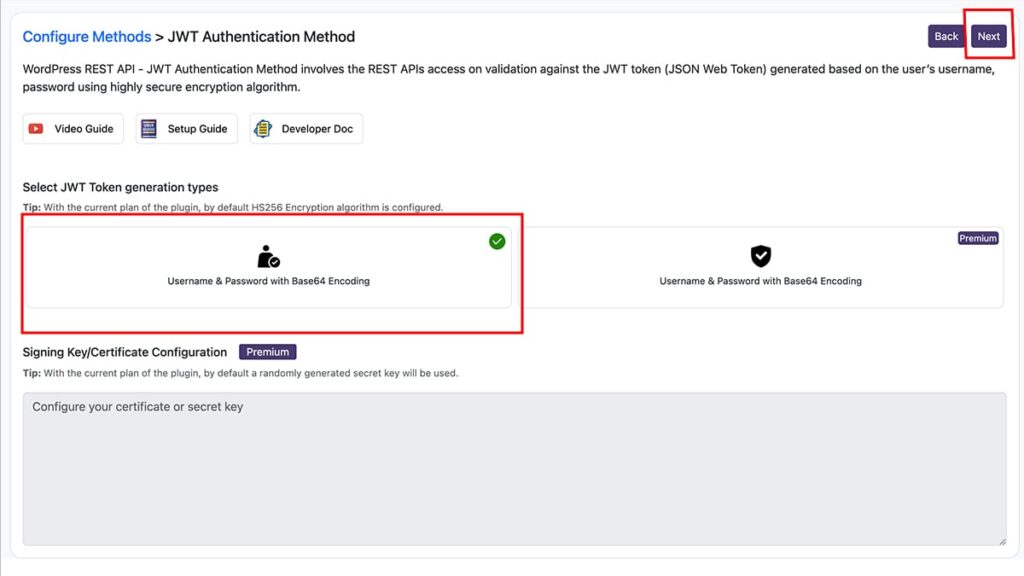
Once you select JWT Authentication, in previous step you need to setup JWT Authentication Method on next screen
If not already, select JWT Token generation types: Username & Password with Base64 Encoding and hit Next.
iii. Save Configuration
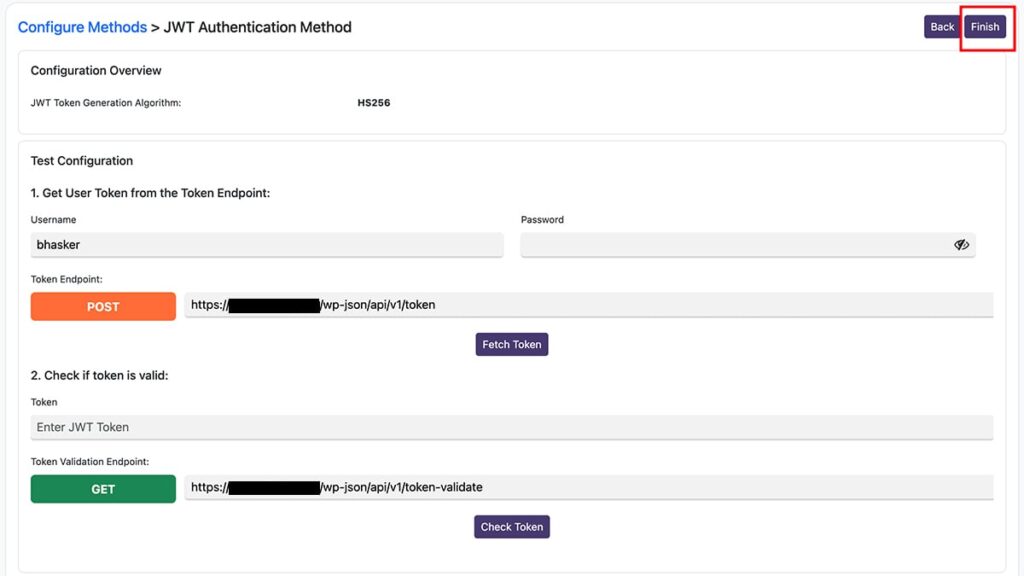
Once you hit next button on the previous screen (step ii), you will land on Configuration Overview screen,
check JWT Token Generation Algorithm is set to HS256 and hit Finish button.
Step 3: Connect Your Zylen & WordPress
i. WordPress & Zylen Integration
Before you begin, ensure that your Zylen plan supports WordPress integration. If you’re unsure, visit the Plans from your Zylen dashboard to verify or upgrade your plan.
From your Zylen dashboard, navigate to Integrations link under Dev menu.
Select WordPress integration and follow on-screen instructions to add your WordPress Credentials (Domain, User and Password) to complete the integration.
ii. Share & Publish Content
Access your documents page within Zylen, where you’ll find a “Publish” button located at the top right corner of your screen. Click on this button to initiate the publishing process of your document onto WordPress.